Your WordPress website loads slowly. Visitors, click away. Nothing appears to be working, no matter how hard you try. On the other hand, most people hardly ever check pingbacks. Do pingbacks slow WordPress?
They do, in fact. Every time a pingback happens, your server’s resources are quietly used up in the background. Most website owners are not even aware that this is happening. Based on the XML-RPC standard, pingbacks are activated by default as soon as you install WordPress.
They build up fast. They use up energy. They also have no positive effects on your WordPress speed optimization. This article describes what pingbacks are, why they impair your website’s performance, and how to stop them immediately.
What is Pingback?
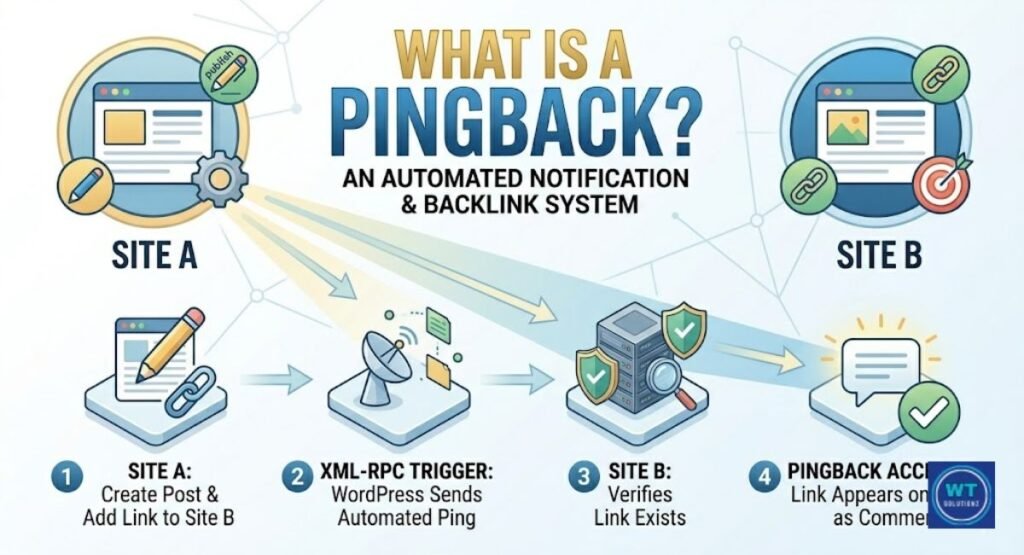
One way to think of a WordPress pingback is as a virtual knock on the door. When a website links to another, WordPress automatically alerts users with the message, “Hey, someone just linked to you.”
That’s all. Simple idea. But the execution? Not so simple.
Pingbacks are powered by the XML-RPC protocol. The system is out of date. Since the early 2000s, it has been a feature of WordPress. At the time, it made sense. The web was smaller. Bloggers wanted to know when others mentioned their work.
But most website owners today don’t even know that pingbacks are a thing. They are turned on by default, working quietly in the background and using up server resources every time you or someone else links to you.
Instead of relying on automated pingbacks for connectivity, focus on manual, high-quality strategies. This is why are internal links important for SEO; they give you full control over your site’s structure without any security risks.
How Do Pingbacks Work in WordPress?
This is what actually happens in the background. You publish a new piece. There’s a link to another WordPress website. WordPress then immediately starts a pingback request. The other site receives it.
It confirms that your link is legitimate. If it is, a pingback shows up in their comment section. simple chain. On both ends, though, server power is needed.
This happens in both directions, which is the problem. Pingbacks are sent when you link out. You receive pingbacks when someone links to you. Every every request is sent to your server. On a busy facility, that adds up rapidly. Overuse of server resources builds up covertly. You don’t realize it at first.
Your website begins to crawl one day. That is the XML-RPC protocol running without your permission in the background.
Make WordPress Fast by Disabling Pingbacks
Here’s the good news. You can stop this today. Disabling pingbacks is one of the easiest and fastest ways to increase WordPress speed.
There is no cost to you. Less than two minutes are needed. It also immediately reduces the number of background requests your server has to handle.
Every time a pingback happens, your server pauses, processes the request, and responds. When it comes to shared hosting, this is awful. This often results in a sharp increase in WordPress’s high CPU usage.
By disabling pingbacks, your server can focus on what truly matters, loading your pages swiftly for real visitors. It’s one of the best WordPress performance tactics for 2026 and beyond.
7 Critical Reasons Your WordPress Website Is Slow – And How to Fix It
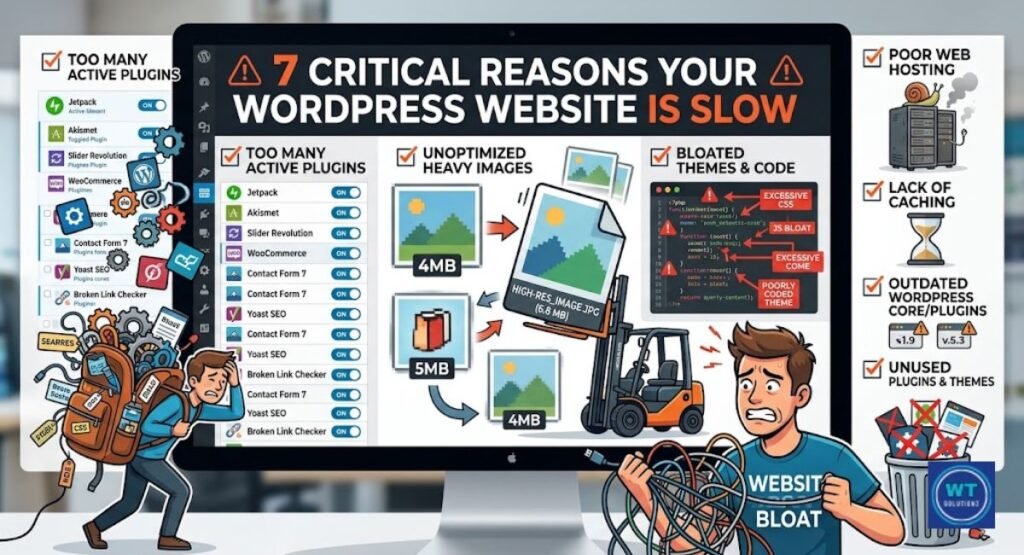
A WordPress website will never load slowly for any one reason. Pingbacks are one piece of the puzzle. But there are other silent killers as well.
Here are the seven primary reasons why your WordPress website is lagging, along with quick fixes for each.
Why are pingbacks slowing down my website? They use server resources each time they fire. But beyond that, bad hosting choices, large plugins, and unoptimized images pile up.
The table below provides a straightforward explanation of everything.
| # | Reason | Impact | Quick Fix |
| 1 | Pingbacks and trackbacks enabled | High CPU usage in WordPress, slow response | Disable in Discussion Settings |
| 2 | Too many active plugins | Plugin overhead, slow admin | Deactivate unused plugins |
| 3 | Uncompressed images | Slow page load | Use ShortPixel or Smush |
| 4 | No caching plugin | Every page loads fresh | Install WP Rocket or W3 Total Cache |
| 5 | Cheap shared hosting | Low resources, crashes | Upgrade to managed WordPress hosting |
| 6 | Bloated theme | Too many scripts loading | Switch to Astra or GeneratePress |
| 7 | No CDN | Slow global loading | Use Cloudflare or BunnyCDN |
To identify which of these 7 reasons is hurting your specific site, you need to understand the difference b/w SEO analysis and an SEO audit to perform a deep technical check on your site’s performance. If you repair one, you’ll see a difference. Your website will be entirely different if all seven are fixed.
Pingbacks and plugins should be addressed first to minimize WordPress database requests. Your load time can be shortened by many seconds with only those two.
Impact on SEO and the Possibility of Exclusion
Google is keeping an eye on how quickly your page loads. It’s not a secret anymore. When optimizing WordPress for search engines, speed is crucial.
Website loading speed factors including pingback requests, delayed server response, and database bloat directly affect your Core Web Vitals score. A low score leads to lower ranks.
Many beginners keep them enabled thinking they might get a ranking boost, but the reality is different. If you are still wondering do pingbacks help SEO, the short answer is that the speed and security risks far outweigh any minor link benefit. Lower ranks lead to less traffic.
The impact of pingbacks on server performance directly affects your SEO. When Googlebot is processing pingback spam, your server responds to it more slowly. While server speed is a technical factor, understanding how meta descriptions impact SEO is equally important for maintaining your organic CTR when rankings fluctuate due to speed issues. Google is aware of this. It makes less visits to your website.
Your crawl budget may possibly go down as a result. Additionally, if your website takes too long to load, Google will move you down the results page. It’s that simple.
The SEO Risk You Might Be Overlooking
Most WordPress website owners focus on keywords and backlinks. A sensible choice. But when it comes to SEO risks, they totally disregard pingback and trackback spam. This is the risk. Spammers insert spammy links into your comment section by pretending to provide pingbacks.
XMLRPC-based DDoS attacks are a known and actual threat. Hackers utilize the XML-RPC protocol to overwhelm your website with fake pingback requests. The load causes your server to buckle.
As part of your link profile, Google can see those spammy links in your comment box. Spammers use pingbacks to inject low-quality links into your site, which can eventually lead to toxic backlinks that harm your domain authority and search visibility.
Even if those links weren’t created by you. even if you were unaware of their presence. There are significant security issues with XML-RPC.
Recovering from a Google manual penalty is challenging. One of the most often overlooked security vulnerabilities in WordPress can be fixed by disabling pingbacks. It’s a minor adjustment that offers significant protection.
Disadvantages of Pingbacks and Trackbacks
Let’s be honest. Pingbacks have far more drawbacks than positives in 2026. Trackback and pingback spam are common. There is so much garbage in your comment moderation queue.
Your server spends more time answering questions that your readers won’t find useful. Additionally, the relationship between pingback requests and WordPress site speed is very antagonistic.
This is an essential reality. According to research from Kinsta and WP Beginner, disabling pingbacks lowers server load and needless HTTP requests. Faster pages result from a lower server load. Better Google rankings and happier readers are the results of faster pages.
The drawbacks are quantifiable, observable, and simple to address.
| Disadvantage | What It Causes |
| Spam pingbacks flood comments | Comment moderation queue overflows |
| XML-RPC stays open | DDoS attack via XMLRPC becomes possible |
| Constant background requests | Excessive server resource usage |
| Fake links in comment section | SEO and link profile damage |
| Confuses readers | Messy comment sections |
Dealing with Spam
On a big WordPress site, preventing the impact of comment spam is a full-time task. Pingbacks exacerbate the situation. Every day, thousands of WordPress websites receive phony pingback requests from spammers using automated programs.
There is so much trash in your comment area. Some of it is caught by Akismet. Not all, though. Requests for ping server notifications accumulate quickly.
Imagine receiving 300 prank calls on your work phone every day. You wasted time picking up even if you hung up right away. That’s precisely what phony pingbacks do to your server.
They are all collected, processed, and thrown away. All of that requires processing power and PHP execution time. Manually handling automated alerts, such as pingbacks, is time-consuming and ineffective. Shutting the door completely is the better course of action.
Too Many Pingback Requests 429 Error
On your website, you may have noticed a 429 error. It translates to “Too Many Requests.” Managing an excessive number of pingback requests is a serious issue.
Your server reaches its maximum when all of the pingbacks come in at once. A 429 error is thrown. Your website slows down or goes offline completely. Your pages won’t load for actual visitors.
Pingback requests and WordPress site speed are directly related. During a rise in traffic, even valid pingbacks can accumulate. Your server is battling on two fronts when you combine that with pingbacks from spam.
It is made worse by WP-Cron jobs running concurrently in the background. There are too many procedures. Too few resources. The website is down. For WordPress websites that leave pingbacks enabled, that is the reality.
How to Turn Off Pingbacks in WordPress
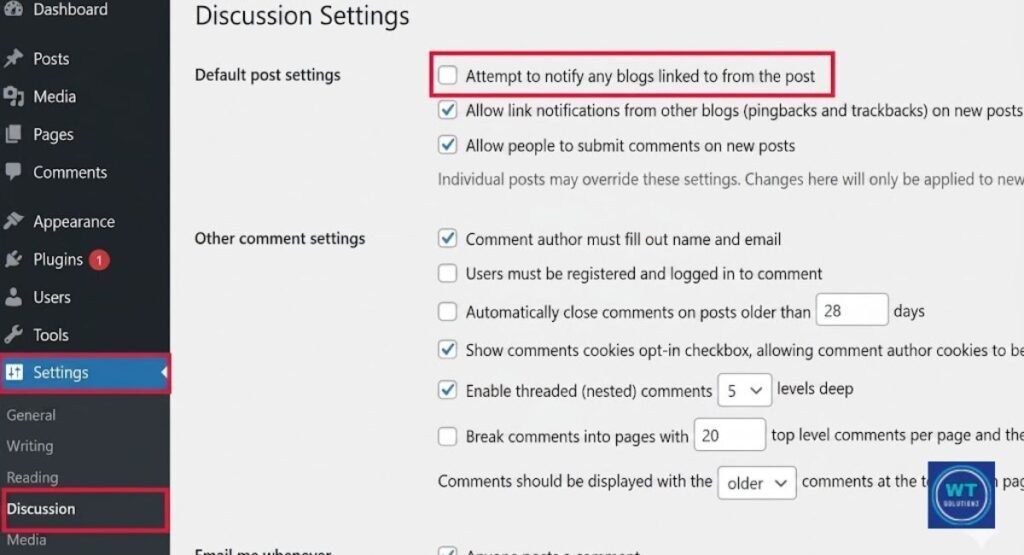
The news is good. One of the simplest things you can do with WordPress is to disable pingbacks. No coding is required. You don’t need a developer.
You only need to make a few clicks in your WordPress discussion settings to finish. Here’s how to do it precisely.
Is turning off pingbacks safe? Of course. You won’t damage your website. You won’t run out of content. Your current comments won’t be impacted.
Cutting off a background process that was negatively affecting your site’s performance is all you’re doing.
Step-by-step guide:
- Open your WordPress dashboard and log in.
- Select Settings from the menu on the left.
- Select Discussion.
- Locate the “Default article settings” section.
- Remove the option “Allow link notifications from other blogs (pingbacks and trackbacks)”
- Uncheck “Allow other blogs to send link notifications to new articles” by scrolling down.
- At the bottom, click Save Changes.
If you are performing these speed optimizations on a high-traffic site, it’s a good practice to know how to enable maintenance mode in wordpress to avoid showing broken or half-configured pages to your visitors during the process.
That’s all. Completed. Pingbacks will no longer be sent or received for new posts. The problem is that pingbacks to your previous postings are still active. To cover those, you need to take one more step.
Disable All Pingbacks in WordPress (Without Plugin)
The aforementioned settings fix only applies to future posts. Your current posts? It’s still really open. You must bulk edit your previous postings in order to close that door as well.
Additionally, a plugin is not required to accomplish this. WordPress comes with an excellent built-in bulk editing feature.
Reducing background activities is frequently the first step in fixing a slow WordPress admin interface. A significant portion of that background noise can be eliminated by bulk disabling pingbacks on all previous postings.
Here’s how to make bulk edits without modifying any code.
Method of Bulk Editing (No Plugin Required):
- Open your WordPress dashboard and select Posts.
- Select “All Posts.”
- Use the checkbox at the top to choose every post.
- Select the Bulk Actions option.
- Click Apply after selecting Edit.
- Locate the bulk edit panel’s Pings dropdown.
- Put “Do Not Allow” in its place.
- Select “Update.”
That’s all. Pingbacks have been disabled for all of your previous entries. It’s secure. It can be reversed. It also takes less than two minutes.
Cut down on database queries WordPress style: fewer pingbacks translate into fewer needless database entries. Your database remains lighter and cleaner.
Installing WordPress Ping Optimizer
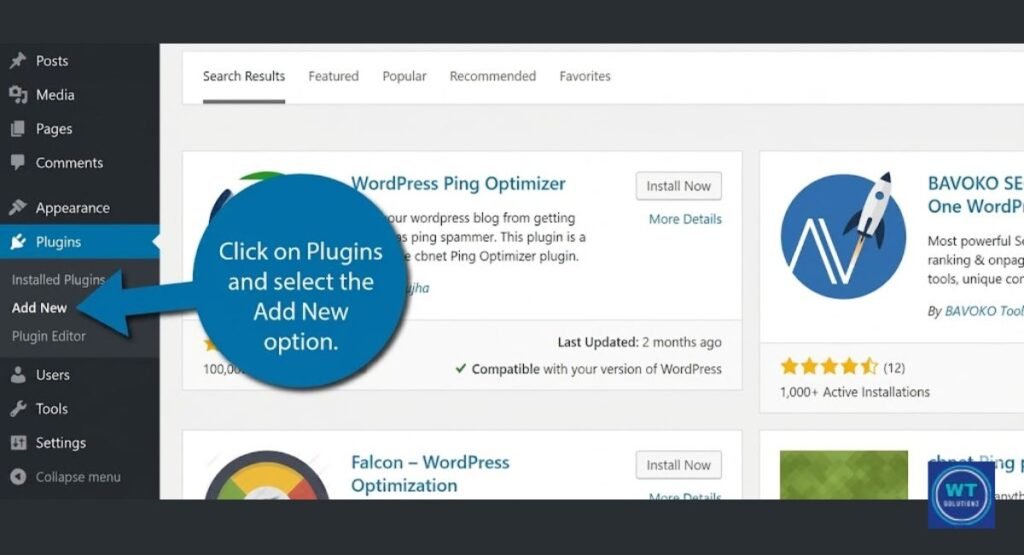
The majority of guides overlook this. WordPress continues to ping update services each time you save or edit a post, even if you have disabled pingbacks. That is not the same as pingbacks.
We refer to it as a ping server notice. By default, it also fires far too frequently. Each draft is saved. each and every upgrade. each revised version. Ping, ping, ping.
WordPress Ping Optimizer is a free plugin that provides the solution. It is not heavy. It performs a single task effectively. It only pings when you publish a new post and prevents WordPress from pinging update services on each save.
That’s the right thing to do. This one has almost no plugin overhead. This is how you install it.
- Navigate to Plugins > Add New on your dashboard.
- Look up “WordPress Ping Optimizer” online.
- Click “Install Now.”
- Click “Activate Done.
- It operates on its own.
There are no settings that may be changed.
Put it in place. Turn it on. Leave. With no work at all, your WordPress speed optimization has received a slight boost.
Is it Still Relevant to Use Pingbacks and Trackbacks on WordPress?
This is the truthful response. No, for 99% of owners of WordPress websites in 2026. Pingbacks are no longer useful. In 2004, when the web was smaller and slower and bloggers needed a mechanism to share new content with one another, they made perfect sense.
There is no longer that planet. Pingbacks are no longer a factor in WordPress performance best practices for 2026.
These days, social media, email newsletters, RSS feeds, Slack forums, and a dozen other platforms are much more effective in bringing together content producers. Pingbacks are outdated. In 2026, leaving them on is like using a fax machine when you have email.
At the very least, disable self-pings. At best, turn off all pingbacks. A small, close-knit blogging community where everyone uses WordPress and regularly monitors pingbacks is the sole potential edge case. Even so, it’s a negative trade because of the spam risk and the impact on site performance.
| Era | Pingbacks Useful? | Better Alternatives |
| 2004-2010 | Yes, very useful | None at the time |
| 2011-2018 | Somewhat | Social media emerging |
| 2019-2026 | No | Social, email, RSS, Slack |
Final Thoughts
In summary, pingbacks cause WordPress websites to lag in ways that most people are unaware of. They squander server resources.
They let trackback and pingback spam in. They use XMLRPC to expose your website to DDoS attacks. They interfere with your search engine optimization. In exchange, they provide virtually nothing beneficial.
The solution is quick. Turn them off by going to Settings > Discussion. Edit your previous posts in bulk. Set up the Ping Optimizer for WordPress. Completed. Your website loads more quickly. Your server is able to breathe more easily.
Your SEO improves. Pingback requests and WordPress site speed are no longer mutually exclusive. Everything you need to resolve this today is here at your disposal. Go fix it, then. Your guests will be grateful. Google will do the same.
“A one-second delay in page load time leads to a 7% loss in conversions.” Neil Patel
Do you have any questions regarding anything in this article, including WordPress speed optimization? Leave them in the comments section below. I’m glad to assist.