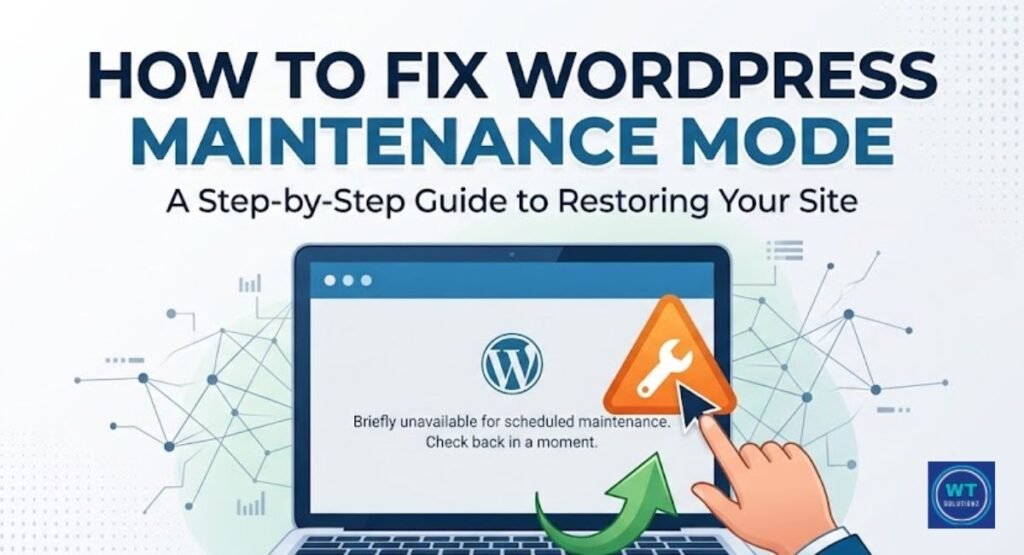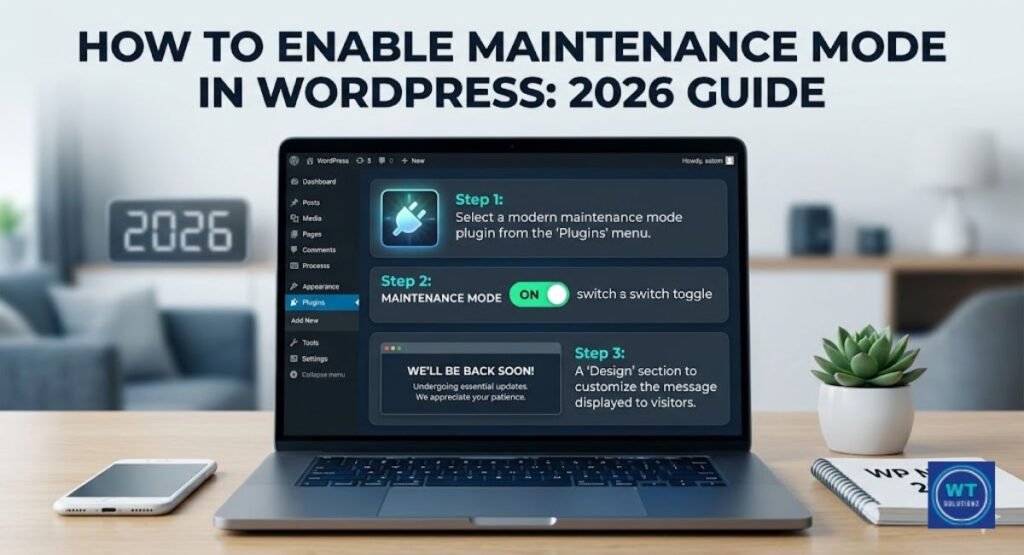
You most certainly encountered a webpage that said, “We’ll be back soon.” Nothing more than a simple message on a plain page. That’s maintenance mode in effect.
It is basically a “closed for renovations” notification on your website. Instead of a half-broken mess while you’re taking care of problems behind the scenes, visitors see a clear, simple page. And trust me when I say that a website that is just partially functional is awful. Really awful. It undermines confidence, scares away potential clients, and gives the impression that your business is irresponsible.
So let’s analyze this first.
What is WordPress Maintenance Mode?
When maintenance mode is activated, nobody can see your live site. Instead, visitors are shown a placeholder page. You can continue working as long as you are safe. It’s easy.
This is an important feature that many beginners are unaware of, yet WordPress does this automatically during upgrades. It generates a hidden file named .maintenance in your root directory, shuts down the website, updates it, and then removes the file. This process only takes a few seconds to finish. Perhaps you didn’t even realize it.
Why is This Feature Necessary?
Consider this. You are currently working on a theme change. It seems like everything is broken. Menus are missing, colors are off, and images are gone. And right then, a potential customer comes to your website.
Not present. They have vanished.
It’s crucial because of this. You have the time you need to conduct repairs without worrying about people watching, thanks to a maintenance page. It takes thirty seconds to switch on. It can help you avoid a very uncomfortable situation.

If you leave it out, the following happens:
| Risk | Impact |
| Broken layouts | Awful user experience |
| Exposed vulnerabilities | Security breach risk |
| Plugin conflicts | Site crashes |
| Half-loaded updates | Data corruption |
| Confused visitors | High bounce rate |
Theme Updates and Redesigns
Your theme dictates every visual element that your visitors view. Every button, color, and text is impacted by it. While your website is being redesigned, users may find it pretty unappealing.
Make sure your maintenance page is always enabled before making any modifications to theme files. When completely altering the theme, this is extremely important. Even a ten-minute interruption can greatly impact traffic. It is preferable to test everything on a staging site before going live, while your maintenance page is up and running.
Plugin Installations and Updates
More crashes are often caused by plugin upgrades than most people are aware of. When two flawlessly functioning plugins unexpectedly conflict following an upgrade, the White Screen of Death may result. One moment, your website may appear normal, and the next, it may be completely blank.
Activate offline mode prior to doing large-scale plugin upgrades. Identify issues before guests see them.
Security Audits and Fixes
A security audit includes looking at databases, files, and settings. While that is happening, your website is at risk. Updating security on a fully functional website is risky.
This is also supported by the numbers. According to University of Maryland studies, cyberattacks happen on average every 39 seconds. Every. 39. Seconds. Thus, take two minutes to access your maintenance page before doing any security-related tasks.
When Should You Actually Use It?
Not every little change requires a maintenance page. Fixing a typo? No. Modifying your logo? No. But some tasks are so risky that you should always turn them on first.
| Task | Use It? |
| Editing a blog post | No |
| Major plugin updates | Yes |
| Full theme redesign | Yes |
| Server migration | Yes |
| Security audit | Yes |
| Database cleanup | Yes |
| Adding a new image | No |
| Installing a payment gateway | Yes |
The rule is easy. If the task could visibly break something for a visitor, turn it on. Done.
Maintenance Mode vs Coming Soon Page
People frequently confuse these up. Despite their similar appearances, they have quite different meanings.
A maintenance page informs current users that your website is momentarily unavailable. A coming soon page informs the public that your new website is not yet operational.
A pause is one. A teaser is the other. Both Google and your visitors will receive the incorrect notice if you use the incorrect one.
| Feature | Maintenance Page | Coming Soon Page |
| Purpose | Temporary downtime | Pre-launch hype |
| Audience | Existing visitors | New audience |
| SEO signal | 503 (temporary) | Can build early traffic |
| Typical length | Hours to a few days | Weeks to months |
| Countdown timer | Optional | Highly recommended |
What to Include on Your Maintenance Page
“Under Maintenance” on a blank screen is an indication of indolence. Your maintenance page is still part of your brand. Others will see it. Make a difference.
The following should be included:
- Your logo and brand colors should match those on your website.
- A friendly message along the lines of “We’re improving things.” Come back by today at 3 PM.
- The tension is increased by a countdown timer.
- Yes, a subscription to the newsletter. People who sign up during downtime are motivated. Don’t pass it up.
- Social media links give people another way to get in touch with you.
- Because the layout is mobile-friendly, a lot of people will check on their phones.
How to Put WordPress into Offline Mode
There are three ways to accomplish this. The plugin method is the most straightforward strategy and the one that most beginners should start with. The other two involve changing the actual files on your website and are more appropriate for developers or confident intermediate users.
1. Using a Plugin
This is the easiest route. WP Maintenance Mode is the most popular free option. With SeedProd, you have more control over the design.
Here’s how to set it up:
- Log in to your WordPress dashboard after opening it.
- Choose Plugins → Add New
- Look up “WP Maintenance Mode” online.
- Choose Activate after choosing Install Now.
- Go to Settings → WP Maintenance Mode.
- Set the Status to Active
- Add your message, logo, and any other details.
- Select “Save Settings.”
That’s all. Visitors are looking at your page. You are at liberty to work. To turn it off, go back to that screen and toggle it off.
| Plugin | Free Version | Drag-and-Drop | Countdown Timer | Newsletter Signup |
| WP Maintenance Mode | Yes | No | Yes | Yes |
| SeedProd | Yes | Yes | Yes | Yes |
| Coming Soon & Maintenance | Yes | Yes | Yes | Yes |
| Maintenance (fruitfulcode) | Yes | No | No | No |
2. Add Code to the functions.php File
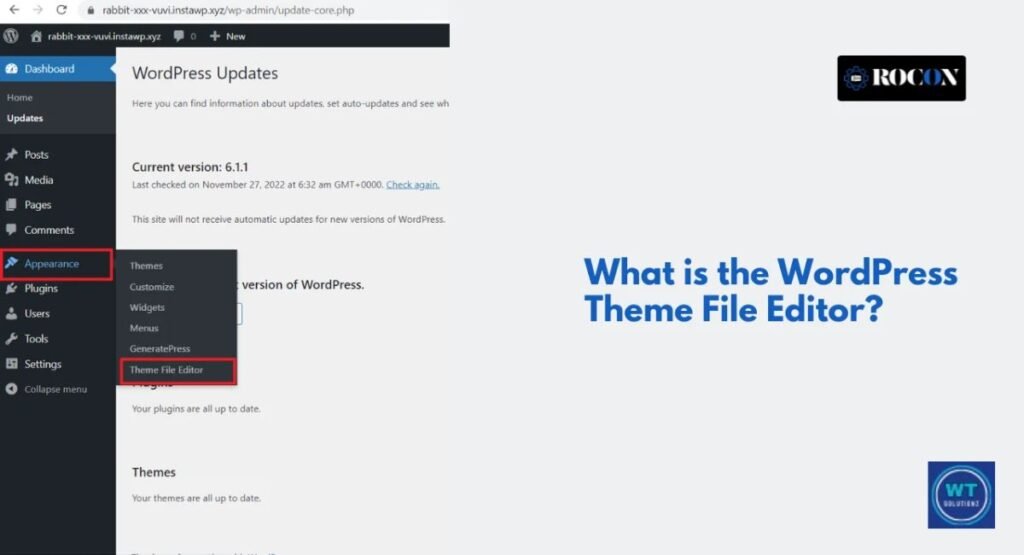
This method is great because it gives you total control without needing extra plugins. However, a quick word of warning: back up your site first. Even a tiny typo in your code can trigger the “White Screen of Death,” so proceed with caution!
The Steps:
- Head over to your WordPress Dashboard.
- Navigate to Appearance → Theme File Editor.
- On the right-hand side, find the functions.php file.
- Scroll all the way to the bottom and paste this snippet:
// Activate offline mode for non-admin visitors
function wp_maintenance_mode() {
if ( !current_user_can( ‘edit_themes’ ) || !is_user_logged_in() ) {
wp_die(
‘<h1>We\’ll Be Right Back!</h1>
<p>We\’re doing some scheduled work. Check back soon!</p>’,
‘Site Under Maintenance’,
array( ‘response’ => ‘503’ )
);
}
}
add_action( ‘get_header’, ‘wp_maintenance_mode’ );
This checks if the visitor is a logged-in admin. If not, they see your message. The 503 code tells Google the downtime is temporary. When you’re done, remove the code completely. Don’t leave it sitting there.
3. Edit the .htaccess File
This controls things at the server level, before WordPress even loads. It’s powerful. It’s also unforgiving if you get it wrong.
Connect via FTP, back up your .htaccess file, then add these lines:
RewriteEngine On
RewriteCond %{REQUEST_URI} !^/maintenance\.html$
RewriteCond %{REMOTE_ADDR} !^123\.456\.789\.000$
RewriteRule ^(.*)$ /maintenance.html [R=302,L]
Replace 123.456.789.000 with your actual IP address so you can still get in. Only use this method if you’re comfortable with server files.
How to Enable and Disable This Feature Manually
WordPress drops a .maintenance file in your root folder during updates. That file is what triggers offline mode. You can create or delete it yourself via FTP.
To turn it on: Create a file named .maintenance and paste this inside:
<?php $upgrading = time(); ?>
Save it. Your site goes offline immediately.
To turn it off: Delete the .maintenance file. Your site comes back online instantly.
One step people always forget: clear your cache right after. Your site might be live again, but visitors could still see the old maintenance page because a cached version is being served. Hit “Clear All Cache” in your caching plugin. Do it every time.
WordPress Stuck in Maintenance Mode
This is a common occurrence. Your website is currently stuck on the maintenance screen after you started an update, your internet connection failed, you closed the tab, and the server timed out. Don’t worry. It’s an easy fix.
When the update starts, WordPress creates the .maintenance file, but it doesn’t delete it afterwards. Find that file in your root directory, access your hosting cPanel or FTP, and remove it. Try refreshing your browser. finished.
Clear your cache right away after that.
Here are some more things to check if this doesn’t fix the problem:
| Cause | Fix |
| Plugin conflicts during update | Rename /wp-content/plugins/ via FTP to deactivate everything |
| Theme update failure | Switch to a default theme via the database |
| Server timeout | Ask your host to increase the PHP execution time |
| Incomplete update | Re-run the update from your dashboard |
| File permissions | Reset folders to 755, files to 644 via FTP or cPanel |
| Cache issues | Clear the cache at both the plugin and hosting levels |
Other Common Errors You Might Encounter
503 Unavailable Service. In fact, during scheduled downtime, this is accurate. However, if you see it out of the blue, something has unintentionally set offline mode. Look for upgrades that are not complete.
A completely blank screen following a botched plugin or theme update is known as White Screen of Death (WSOD). Turn off maintenance mode, then use FTP to rename your plugins folder to identify the problematic one.
The URL route in your plugin settings is incorrect, resulting in a 404 error on your maintenance page. Adjust the route.
Even after you switched it off, the maintenance page is still visible due to a cache problem. Clear everything right away.
Your functions are locked out, admin. There is a logic problem in the PHP code. Quickly fix it.
After turning it on, always test your page in an incognito window. That’s what actual guests see. There are no surprises.
Customizing Your Offline Page
A default screen is easily overlooked. A well-branded one, on the other hand, offers a chance. Take a look at how big businesses handle their downtime pages; they are professional, brand-consistent, and very comforting. The same emotions might be evoked by your page.
Start by making sure your logo and brand colors match your current site exactly. Write a kind, approachable message rather than a cold, technical alert. Adding a countdown timer increases suspense. Additionally, because visitors who join during downtime are frequently highly motivated, a newsletter signup form turns a difficult experience into a profitable marketing opportunity. Don’t pass up this opportunity.
Always include contact details and links to your social media accounts. People who are unable to visit your website still need a way to contact you. All of this is made possible without the need for coding, thanks to SeedProd’s drag-and-drop builder. It is the easiest-to-use tool for making a truly professional page.
Does This Affect Your SEO?

No. But only if you do it right.
A 503 HTTP status code must be returned by your website. Google is informed that this is only temporary. Return later. Google acknowledges that. After a brief pause, crawlers will return and immediately resume.
Leaving your website unavailable for a few days is the only big risk. Google begins to question whether you are permanently gone. When downtime is kept to a minimum, less than 24 hours, your rankings are protected.
John Mueller of Google has publicly stated that a 503 during maintenance is quite OK and that Google will re-crawl following a bit.
If you’re using a plugin, the 503 is handled automatically. If you used the functions.php method, double-check that ‘response’ => ‘503’ is in your wp_die() call. That one line protects your rankings.
How Much Does WordPress Maintenance Actually Cost?
Anywhere from free to a few hundred dollars a month. Depends on whether you do it yourself or hire someone.
| Task | DIY Cost | Pro Cost (USA) |
| Plugin and theme updates | Free | $50–$150/month |
| Security audits | Free tools available | $100–$300/month |
| Automated backups | Free (UpdraftPlus) | Included in managed hosting |
| Database cleanup | Free (WP-Optimize) | Included in managed hosting |
| Uptime monitoring | Free (UptimeRobot) | $10–$50/month |
| Full monthly maintenance | $0–$20/month | $150–$500/month |
Managed WordPress hosting providers such as WP Engine, Kinsta, and Flywheel include backups, security measures, and performance optimization tools within their service packages. For websites that are expanding, this is frequently the most advantageous option available. Typically, plans commence at approximately $25 to $35 per month.
Exiting Offline Mode Safely
Going offline is just half the job. Coming back online deserves just as much care. Rushing to flip the switch without checking things first can push a still-broken site live. That defeats the whole point.
Run through this checklist before you come back:
| Check | Done? |
| All plugin updates are complete and tested | ✓ |
| Theme updates applied, and layout confirmed | ✓ |
| Mobile display looks correct | ✓ |
| Contact forms and checkout tested | ✓ |
| Broken links checked | ✓ |
| Page speed reviewed | ✓ |
| Backups confirmed | ✓ |
| SSL and HTTPS are working | ✓ |
| Tested on staging first | ✓ |

Disabling Maintenance Mode
Once your checklist is done, turning it off is fast.
- Plugin: Go to Settings → WP Maintenance Mode, switch to Deactivated, save
- functions.php: Delete the entire code block you added
- Manual file: Connect via FTP and delete the .maintenance file
Then clear your cache. Always. Open an incognito window and check your site. What you see is what your visitors see.
See Also:
How to Enable Maintenance Mode in WordPress
How Much Do WordPress Maintenance Plans Cost
How to Fix WordPress Maintenance Mode
FAQs
How to activate maintenance mode?
Install WP Maintenance Mode from your WordPress dashboard, go to its settings, flip the status to Activated, and customize your page. Done in minutes.
How to put a website in maintenance mode?
Install a maintenance plugin, design your page with a friendly message, an optional countdown timer, and a newsletter signup, then toggle it on from the plugin settings. For a code-based approach, add a short snippet to your functions.php file or create a .maintenance file manually via FTP.
Does maintenance mode affect SEO?
No, as long as your site returns a 503 status code. That signals to Google it’s temporary. Keep downtime under 24 hours, and your rankings stay safe.
How to get into maintenance mode?
Three ways: plugin (easiest), functions.php code snippet (intermediate), or .htaccess file editing (advanced). Beginners should always start with the plugin method, fast, safe, and with no core files touched.
How do I get my WordPress site out of maintenance mode?
Connect via FTP or cPanel. Find the .maintenance file in your root WordPress folder. Delete it. Clear your cache. Your site comes back online right away.
How to enable maintenance?
Use a plugin like WP Maintenance Mode or SeedProd. After activating the plugin, find its settings in your dashboard, switch the status to enabled, add your message and branding, and save. Goes live instantly for all non-admin visitors.
Where is my maintenance mode setting?
If you used a plugin, it’s inside that plugin’s settings page in your WordPress dashboard, usually under Settings or Tools. If you turned it on manually, look for a .maintenance file in your root directory via FTP or your hosting file manager.
Final Thoughts
This feature is one of the most useful things WordPress gives you. It protects your visitors from seeing a broken site. It gives you space to work without an audience. And it takes almost no time to set up.
Start with a plugin. Keep your downtime short. Make sure your site returns a 503 status code. Run the checklist before you come back online. Clear your cache every single time.
Four simple habits. Use them every time you need to take your site down for work.
Your visitors deserve a clean experience, even when your site is temporarily closed.