You recently created a WordPress website. Everything appears to be in order. However, upon closer inspection, the headline remains “Just another WordPress site.” That is an issue. And you’re probably not even aware that it’s now lowering your Google ranks. When search engine bots crawl your pages, one of the first things they see is the title of your website.
It has a direct impact on your Click-Through Rate (CTR) and position in organic search results. Google and actual visitors are misled by a weak or default title. The good news? It takes less than two minutes to learn how to change website title in WordPress. Not a single code. Not a developer. Just a few easy clicks within your WordPress dashboard.
What Is a WordPress Website Title?
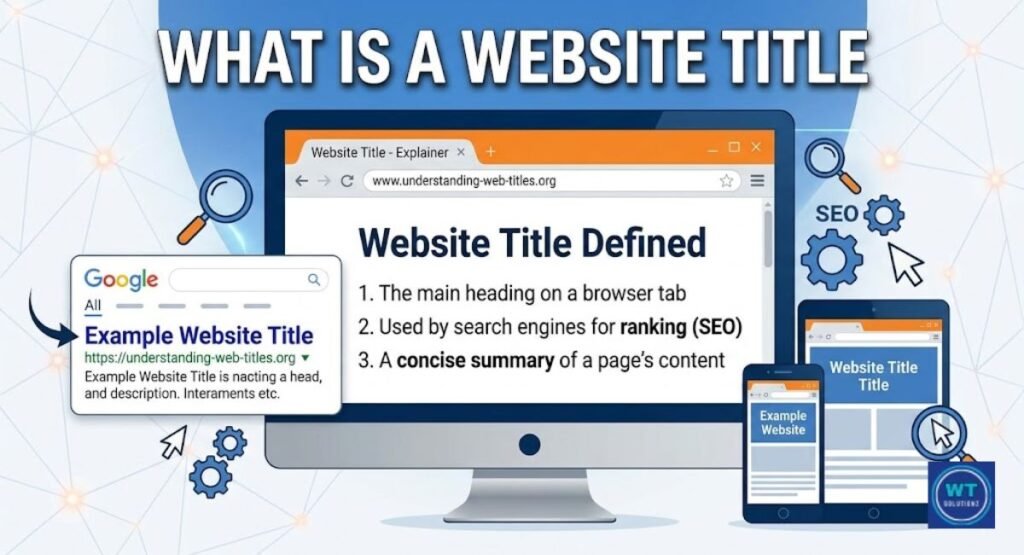
Your website’s name is its title. Search Engine Results Pages (SERPs), the browser tab, and typically the header of your website are where it appears. It’s that simple. It is read first on your page by both people and search engine bots.
But this is what most people overlook. Your title is a live brand identification signal, not just a label. If you do it incorrectly, your Click-Through Rate (CTR) will be subtly harmed. When you get it right, people will immediately trust you. It matters more than you may realize.
Difference Between Site Title, Tagline, and Page Title
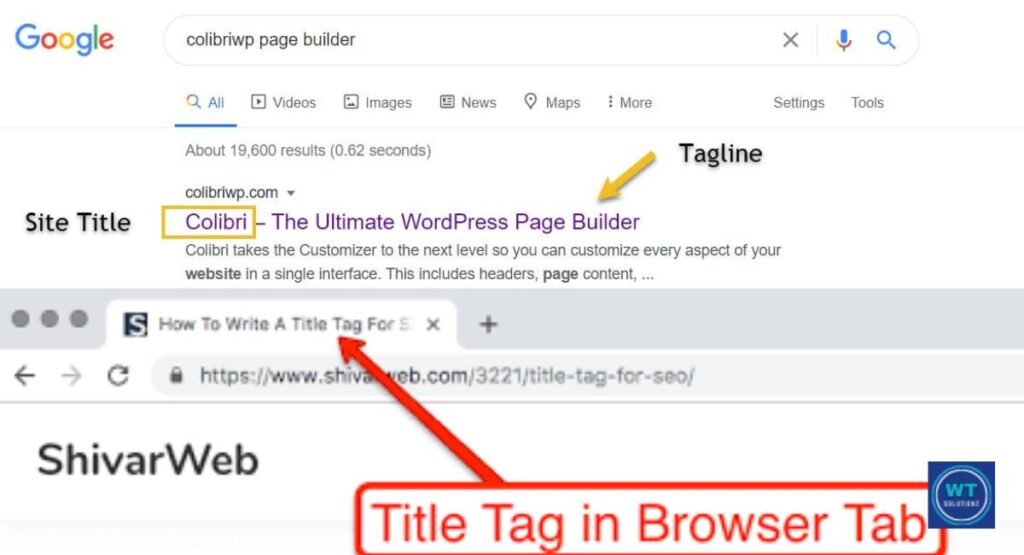
Individuals frequently confuse these concepts. Despite their connections, they are not the same. Here are some brief explanations of the differences between them:
| Term | What It Means | Where It Shows |
| Site Title | Your website’s brand name | Browser tab, Google, Header |
| Tagline | One-line site description | Below header, meta info |
| Page Title | Title of one specific page | Browser tab, Search result |
Consider the tagline to be your slogan, while the website title represents your company name. As for the title of the page, it is distinct for each page and serves a purpose akin to that of a chapter heading.
Why Does the Website Title Matter?
Google starts by looking at your title. Really? It immediately enters your HTML title tag, which tells search engine bots what your website’s primary focus is. A compelling title improves your ranking in organic search results. A weak one has buried you.
This is the starting point for content relevancy. If your title doesn’t match what you actually offer, visitors will swiftly go. Google sees that bounce. A bad title also progressively decreases your rankings. Don’t ignore it.
SEO Benefits
Google uses your title to determine your ranking. Stop completely. A well-written, keyword-rich title that avoids keyword stuffing can greatly raise your placement in the SERPs. Studies show that a captivating title boosts CTR by over 20%. That’s free traffic with only one word choice.
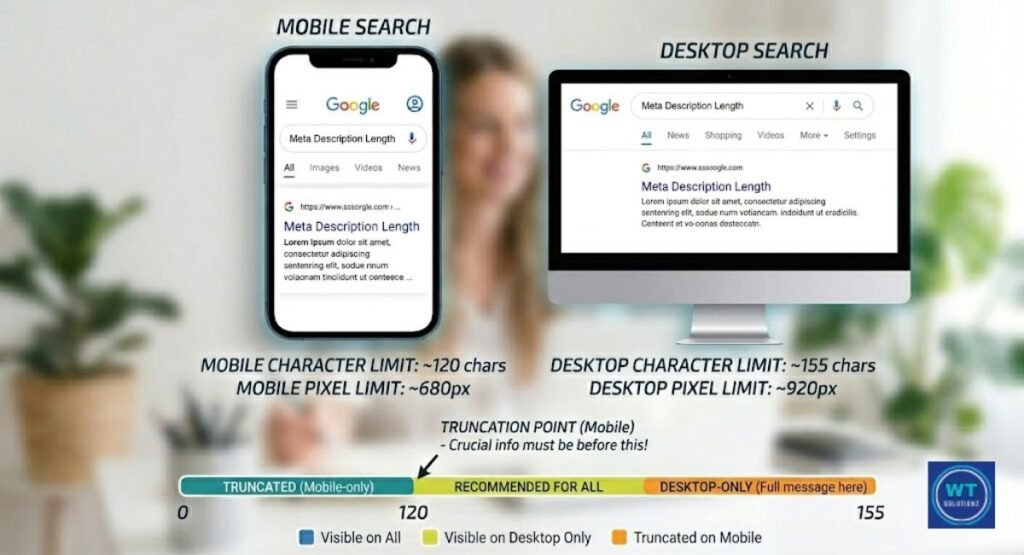
Place your main keyword toward the top of the title. Keep it natural. Tell the truth. Additionally, always follow the recommended character limit of 50–60 to guarantee that Google displays the complete text.
Branding Importance
Your title is your initial digital handshake. Before they have even read a word of your content, a visitor has already developed an impression about your brand personality based just on the title. A self-assured, clear title promotes trust. A default or unclear one destroys it.
Strong brand identification occurs when your title complements your logo, tone, and overall message. When it comes to US viewers in particular, Americans are cautious about the internet. When they have a professional title, they feel safe enough to stay.
How to Change WordPress Site Title
Thankfully, WordPress offers four ways to accomplish this. Choose the strategy that most closely matches your degree of comfort. Each one changes your website’s title to make it show up correctly in browser tabs, search engine results pages, and throughout your website.
Therefore, there is a path for you here regardless of your level of experience as a developer. Let’s go over each of the four.
Method 1: Via General Settings
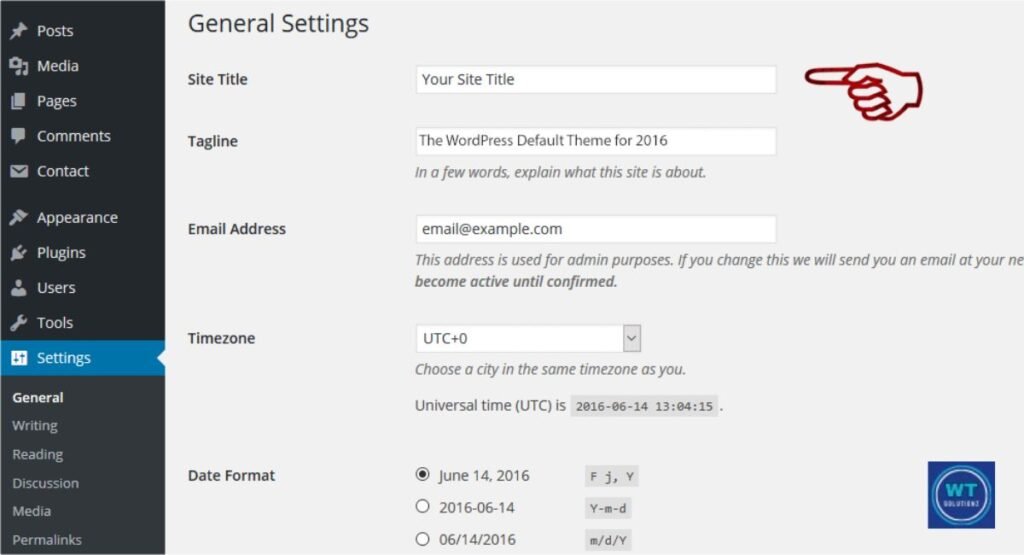
This is the fastest method. less than sixty seconds. Go to the WordPress Dashboard, choose Settings, and finally choose General. At the top is the Site Title field. Modify it. Go down. Completed, click “Save Changes.”
No plugins. No code. Just a quick edit in your Admin Dashboard. If you’re new to WordPress, start here every time.
Steps:
- Go to WordPress Dashboard
- Click Settings → General
- Find the Site Title field
- Type your new title
- Click Save Changes
Pro Tip: Modify your slogan while you’re there. Both fields are right next to each other in General Settings.
Method 2: Via WordPress Customizer (Appearance)
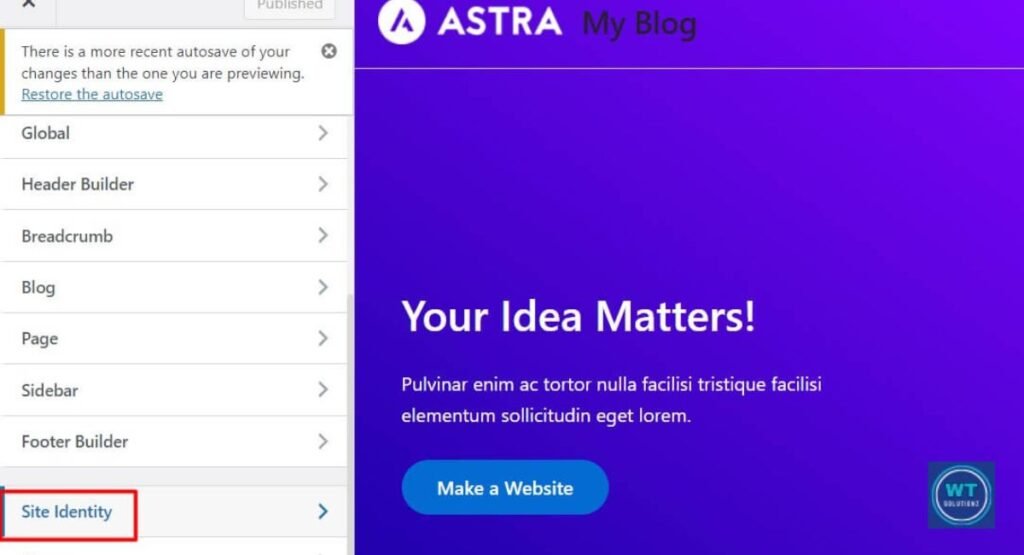
You can examine changes in real time using this way before saving. A wise decision for those who learn best visually. Navigate to Appearance, select Customize, and then use the Theme Customizer to access Site Identity. When you’re satisfied, edit the title of your website, watch the live preview on the right, and click Publish.
You’ll also see options here for your image logo, favicon, and site icon, all in one place. What you see is what you get.
Steps:
- Go to Appearance → Customize
- Click Site Identity
- Edit the Site Title field
- Check the live preview
- Click Publish
Method 3: Using Yoast SEO / RankMath Plugin
This is the section that most novices overlook. In Google’s perspective, your default title may be overridden if you utilize Yoast SEO or RankMath. Therefore, even if your website appears correct, Google may be interpreting it differently. Both should be updated.
SEO-friendly title control lives inside your plugin settings. Here’s exactly where to go:
For Yoast SEO:
- Go to SEO → Search Appearance
- Click the General tab
- Edit the title template using your main keyword naturally
- Save changes
For RankMath:
- Go to RankMath → Titles & Meta
- Click Homepage
- Edit the Homepage Title field
- Save changes
| Feature | Yoast SEO | RankMath |
| Title Template | Yes | Yes |
| Live SERP Preview | Yes | Yes |
| Free Version | Yes | Yes |
| Best For | Intermediate Users | Beginners |
Update the title of your SEO plugin as well. If not, even after you’ve made all the necessary corrections, Google can display the incorrect title in search results.
Method 4: Editing the Database (Advanced)
Stop here if you’re a beginner. Seriously. One wrong database edit breaks your entire site. Always back up first. Always.
This approach makes use of phpMyAdmin within your hosting cPanel. It directly modifies the WordPress database item associated with the URL structure and title of your website.
Steps:
- Log into your hosting account
- Open phpMyAdmin
- Select your WordPress database
- Open the wp_options table
- Find the row where option_name = blogname
- Click Edit
- Change option_value to your new title
- Click Go
Use this only when the other methods fail, or when you’re locked out of your Admin Dashboard completely.
How to Change a Page Title in WordPress
Your site title and a page title are not the same. Your brand name is everywhere in the headline of your website. A page title is specific to a single page or post. It’s what shows up for that particular page in both the browser tab and organic search results.
A distinct page title is required for each page. Duplicate page titles are penalized by Google. In addition to helping each page target its own set of semantically related keywords, unique page names enhance your content relevancy signals. It’s a little habit that pays off big.
In Gutenberg Block Editor
Launch your post or page in Gutenberg. The editing interface has a big field at the top that reads “Add title.” That’s all. Press it. Enter your new title. Near the start, use your primary keyword organically. Next, select either Update or Publish.
Fast. Clean. It takes ten seconds.
Steps:
- Open your page/post in Gutenberg
- Click the title field at the top
- Type your new SEO-friendly title
- Click Update or Publish
In Classic Editor
Still using Classic Editor? No judgment. Open your page or post. At the top you’ll see a text box labeled “Enter title here.” Click it. Edit it. Hit Update. That’s your whole job.
Here’s a suggestion, though: think about moving to Gutenberg in 2026. It is much better supported by contemporary themes and plugins and is quicker and more adaptable.
Steps:
- Open your page/post in Classic Editor
- Click the title field at top
- Edit the title
- Click Update
How to Change WordPress Tagline
Your tagline is a succinct description of your website. WordPress defaults to “Just another WordPress site.” Are you still using that? Today, make a change. Depending on your theme, it appears in SERPs, occasionally in your header, and always in your browser tab.
In your WordPress Dashboard, select Settings → General. The Tagline field is located directly beneath the Site Title field. Remove the default. Writing something short, specific, and real, under 10 words is the sweet spot. Consider it your elevator pitch in one sentence. Make it matter.
Strong tagline examples by niche:
| Niche | Strong Tagline |
| Food Blog | Fresh Recipes for Busy American Families |
| Tech Blog | Simple Tech Tips That Actually Make Sense |
| Marketing Agency | We Help Small Businesses Rank on Google |
| Fitness Site | Real Workouts for Real Life |
Tips for Writing an SEO-Friendly Title
A title that exists is not the same as a title that ranks. The two are really different from one another. Three factors typically determine the difference: brand clarity, character length, and keyword placement. If you master all three, you’ll already be ahead of the majority of websites.
A title that is genuinely SEO-friendly appeals to both Google and actual people. It uses semantically related keywords naturally. Additionally, it doesn’t get cut off within 60 characters. basic guidelines. significant outcomes.
Use Keywords Naturally
The title should contain your primary keyword, but it shouldn’t be jammed in like a square peg in a round hole. Google actively penalizes keyword stuffing. “WordPress Title Change How Website WordPress 2026” is an example of a spammy title. It appears to have been written by a bot.
Write it how you would say it aloud. “How to Change Website Title in WordPress” makes sense. That is ranked. To support it, use semantically related keywords throughout the body of the article.
Keep Length Between 50–60 Characters
In search results, Google removes titles that are more than 60 characters. If it’s too long, readers will see an annoying “…” at the conclusion. Your CTR is killed since the title appears to be broken. Here, the ideal character length is actually important.
Use Mangools SERP Simulator, it’s free and shows exactly how your title looks in organic search results before you publish. Ten seconds. Worth it every time.
Add Your Brand Name
Adding your brand name to the title will eventually improve recognition. The format that most SEO-friendly specialists recommend is Focus Keyword | Brand Name or Focus Keyword, Brand Name. For example, “How to Change Website Title in WordPress | WPBeginner.”
While concentrating on your main term for Google, this improves brand awareness for real readers. Even if you’re not at position one, people gradually start to remember your name in the SERPs, which raises your click-through rate.
Common Issues and Quick Fixes
You are the one who makes the change. You refuel. You may still see the previous title. furious. But it happens to everyone, and the answers are almost always simple. You don’t need a developer. Knowing where to look is all that is required.
Caching or an unnoticed plugin override are the main causes of WordPress site title problems. There are two explanations. Both are easy to fix. Here’s precisely what to do.
Title Not Updating
Your browser is usually the problem. It caches old data and keeps showing you the outdated version. Clear it first.
Quick fix checklist:
- Clear your browser cache, press Ctrl + Shift + Delete (Windows) or Cmd + Shift + Delete (Mac)
- Hard refresh, press Ctrl + Shift + R (Windows) or Cmd + Shift + R (Mac)
- Clear your WordPress cache inside plugins like WP Rocket or LiteSpeed Cache
- Check if Yoast SEO or RankMath is overriding your title with a different template
- Log out of your Admin Dashboard, log back in, and recheck
Still stuck? Deactivate your caching plugin temporarily, make the change, then reactivate it.
Wrong Title Showing in Google
Google still displays the previous title even though you made all the necessary adjustments. In actuality, Google does not immediately update its index. It crawls again at its own pace. Sometimes it takes days. For weeks at a time.
How to speed it up:
- Go to Google Search Console
- Paste your URL into the top search bar
- Click Request Indexing
- Wait 1–7 days for Google to recrawl
It’s also crucial to remember that Google sometimes entirely rewrites your title if it thinks it’s too confusing. The answer is a more accurate and relevant title that properly corresponds with your content relevancy signals. If a title is easier to grasp, Google leaves it alone.
Fact: According to Portent, Google rewrites title tags in over 61% of cases when they’re too long, stuffed with keywords, or irrelevant to page content.
See Also:
What is a Website Title
Where to Put the Title Tag in HTML
How to Write Catchy Website Titles
FAQs
How do I change the title of a website?
Navigate to Settings → General under WordPress Dashboard. Make changes to the Site Title box. Click “Save Changes.” Completed in less than 60 seconds. Just a brief field update, no code, no plugins.
How do I rebrand a WordPress website?
In General Settings, start with the title and slogan of your website. Next, change all of your distinctive site titles, color scheme, favicon, and logo to reflect your new brand. Your anchor is the title of the website. Fix that first, then expand from there.
How do I change the font of my site title in WordPress?
In your Theme Customizer, select Appearance → Customize → Typography. The majority of contemporary themes allow you to alter the font right there. Not lucky? Try Google Fonts Typography, a free plugin. A developer can add a few lines of CSS to your theme stylesheet for complete control.
How do I change the title of a website on WordPress?
The quickest path is Settings → General → Site Title. For a real-time visual preview, navigate to Appearance → Customize → Site Identity. Both approaches instantaneously change the title of your entire website.
Can I rename my website?
Yes, without a doubt. Renaming entails changing the title of your website in General Settings, which is completely acceptable at any moment. However, it’s a more involved process requiring hosting settings and redirects if you’re also changing your domain name and URL. Changing the title is simple. It requires careful planning to change the domain.
How do I edit the header title in WordPress?
Head to Appearance → Customize → Site Identity inside the Theme Customizer. Edit the site title field there. Some themes also let you edit the header through Appearance → Widgets or a page builder like Elementor. Always start with Site Identity, it’s the safest and most reliable option.
Final Thoughts
In the end, one of the most valuable fundamental abilities you can possess is the ability to modify the title of your website using WordPress. Two minutes are needed. It’s totally free. Additionally, it has a direct impact on your brand recognition, CTR, and rankings every single day.
Now you have four ways. General speed settings. For a live preview, use the Theme Customizer. For complete SEO control, use RankMath or Yoast SEO. Additionally, phpMyAdmin offers sophisticated database editing. Every day you lose out on free traffic when you utilize a weak or default title, so choose your strategy and make the change now.
Change the title of your website. Make your tagline more precise. Make each page as efficient as possible. and begin to appear in organic search results as your website truly merits. Have a query? Please leave a comment; we will respond to each and every one of them.