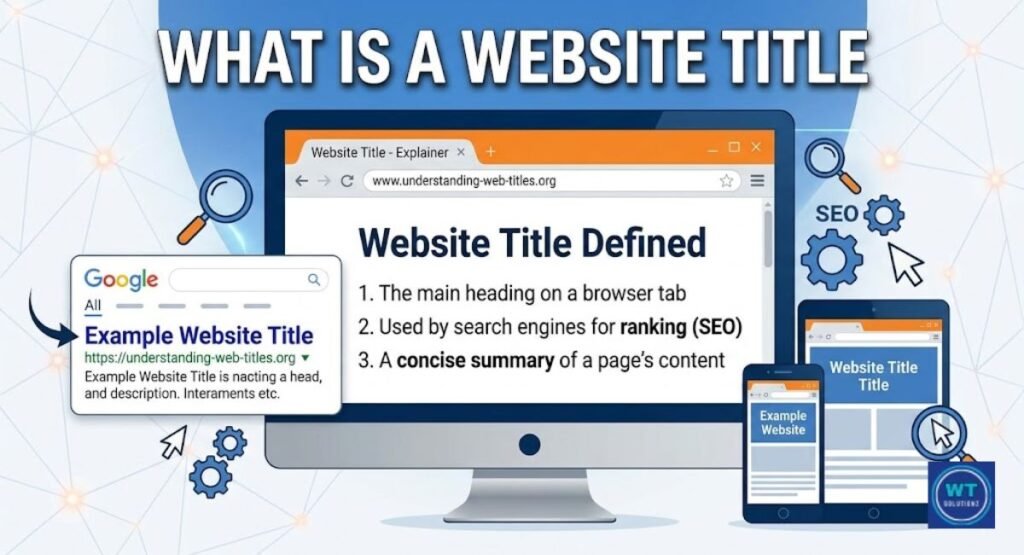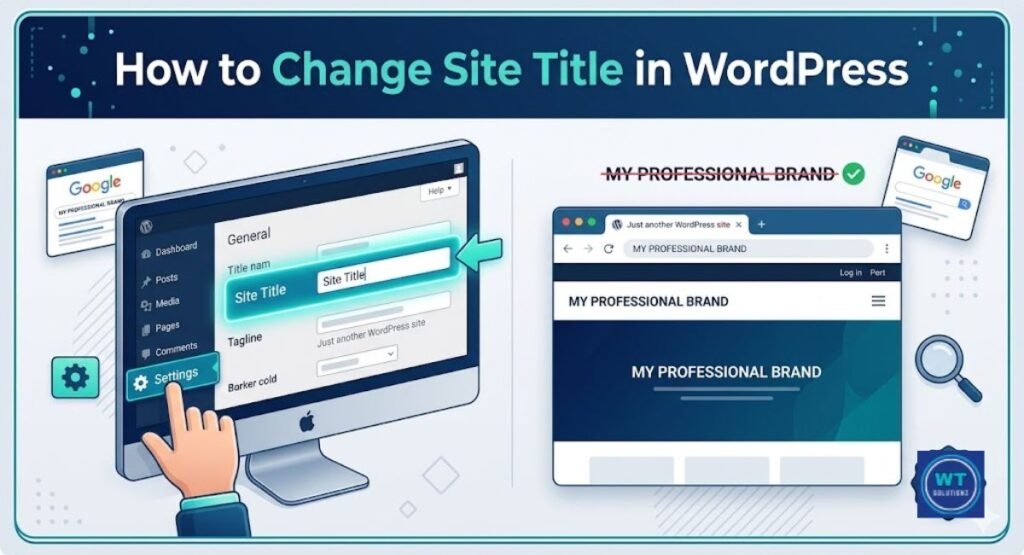
You’ve worked really hard on your WordPress website. However, a silent problem continues to abruptly lower your rankings. Duplicate meta descriptions are the problem.
The brief passage of text that shows up beneath your page title on the search engine results page is called a meta description. Google quickly becomes confused when two or more pages have the same description.
It significantly lowers your Search Engine Visibility and Click-Through Rate (CTR). Additionally, Search Console Errors begin to accumulate within Google Search Console. This tutorial explains how to eliminate duplicate meta descriptions, address the underlying issues, and permanently maintain a clean WordPress website.
Why Does WordPress Generate Duplicate Meta Descriptions?

Duplicate descriptions are not intentionally created by WordPress. The way themes, plugins, and content structures work together in the background is the reason behind this. Knowing the “why” will save you hours of speculation in the future.
Plugin conflicts are the most frequent cause. Many WordPress users believe that having more tools equates to having greater power; they install both Yoast SEO and Rank Math simultaneously. Incorrect. Double Tagging is the result of using two SEO plugins at the same time, each of which outputs a meta description tag into the header of your website. When Google detects two tags, it either ignores them both or chooses one at random. It’s a complete disaster.
Problems are also caused by the SEO settings. SEO tools are frequently included in premium themes like Avada, BeTheme, Divi, and OceanWP. With these settings, you may use Hardcoded Tags to directly add meta descriptions to your Header.php file. Both sources activate simultaneously when you use an SEO plugin. There are two explanations. One search engine was perplexed.
Another quiet offender is paginated archives. WordPress often uses the same meta description from Page 1 for all of your blog’s archive pages, including Pages 1, 2, and 3. The description part of each paginated page contains the same content. All of them have been reported by Google.
In the absence of a distinct snippet, taxonomy pages share descriptions, just like categories and tags. Then there’s only a human error. Due to manual copy-paste issues during content posting, editors inadvertently repeat the same description in many entries. You’d be surprised at how often it happens.
| Cause | What Happens | How Common |
| Plugin Conflict | Two plugins output two meta tags | Very Common |
| Theme SEO Settings | Theme + plugin both write descriptions | Common |
| Paginated Archives | All archive pages share the Page 1 description | Very Common |
| Taxonomy Pages | Categories and tags use the same fallback text | Common |
| Manual Copy-Paste Issues | Human error during publishing | Frequent |
How to Identify Duplicate Meta Descriptions
You must identify the issue before making any repairs. What you cannot see cannot be fixed. Fortunately, this is made simple by both commercial and free software.
Use Google Search Console first. It communicates directly with Google and is free. After logging in, navigate to the Indexing area of Pages. Keep an eye out for alerts that say “Duplicate without user-selected canonical.” Google has already highlighted these pages. The Coverage report also includes Search Console Errors. This is the quickest place to begin.
Use a site crawl tool to investigate more thoroughly. This type of activity is a wonderful fit for Screaming Frog, which is free for up to 500 URLs. It creates a single spreadsheet with all of your website’s meta descriptions. Finding duplication is made simple by sorting by description text. While Ahrefs and SEMrush achieve similar goals, Ahrefs goes one step further by providing recommendations and ranking.
| Tool | Cost | Best Use |
| Google Search Console | Free | Find flagged duplicates fast |
| Screaming Frog | Free up to 500 URLs | Full site crawl and export |
| Ahrefs Site Audit | Paid | Deep duplicate and SEO analysis |
| SEMrush Site Audit | Free trial available | Complete technical SEO report |
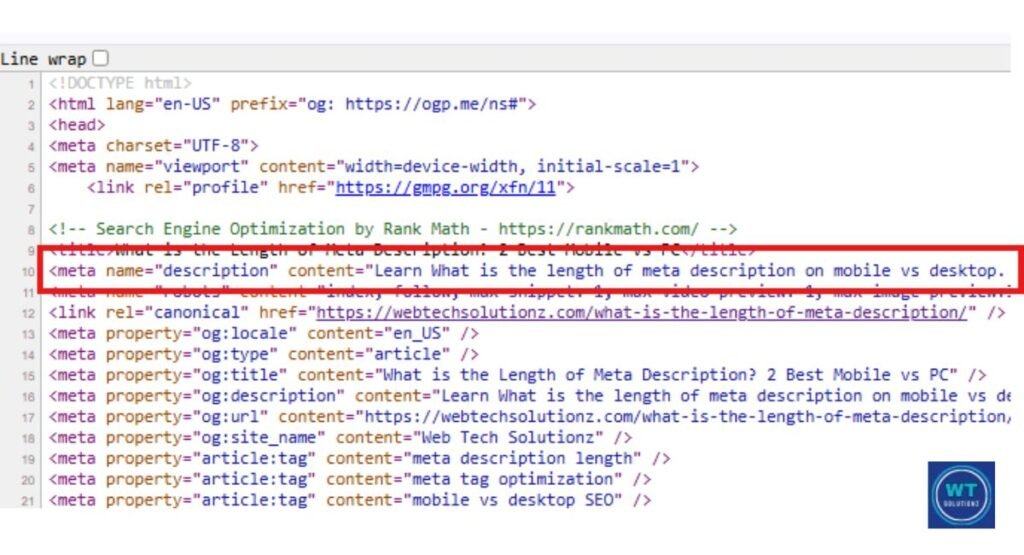
You can also look at a single page at a time using this. Go to the page by opening your browser. To examine the page source, press Ctrl + U. Next, perform a Ctrl + F search for “description.” The meta tag is shown directly by the code. Examine and compare the same tag across two distinct URLs. You have discovered a duplicate if they are the same.
Step-by-Step Solutions to Fix Duplicate Meta Descriptions
Now let’s find a solution. These five successful therapies each target a different underlying problem. Examine each one separately.
Solution 1: Disable Built-in Theme SEO Settings
This is frequently the fastest victory. The majority of customers are unaware that their premium theme is secretly creating its own meta descriptions. You must switch that off.
Navigate to the preferences panel for your theme. Go to Theme Options > SEO in Avada. Go to Theme Customizer > SEO Settings in Divi. Navigate to Theme Options > SEO in BeTheme. Locate and fully disable any field that controls Title Tags or generates a meta description. Instead, let your SEO plugin take care of everything. The same website header should never be written to simultaneously by two systems. That’s the beginning of double tagging.
Expert Advice: To find out if your theme generates meta tags, hit Ctrl + U on your homepage and look for “description.” Your theme is to blame if you see two description tags.
Solution 2: Fix Paginated Archives With Dynamic Placeholders
Paginated archives are cunning. Your blog’s first page has a lovely description. However, it is just copied on pages 2, 3, and 4. Google notices this and flags each and every one of them.
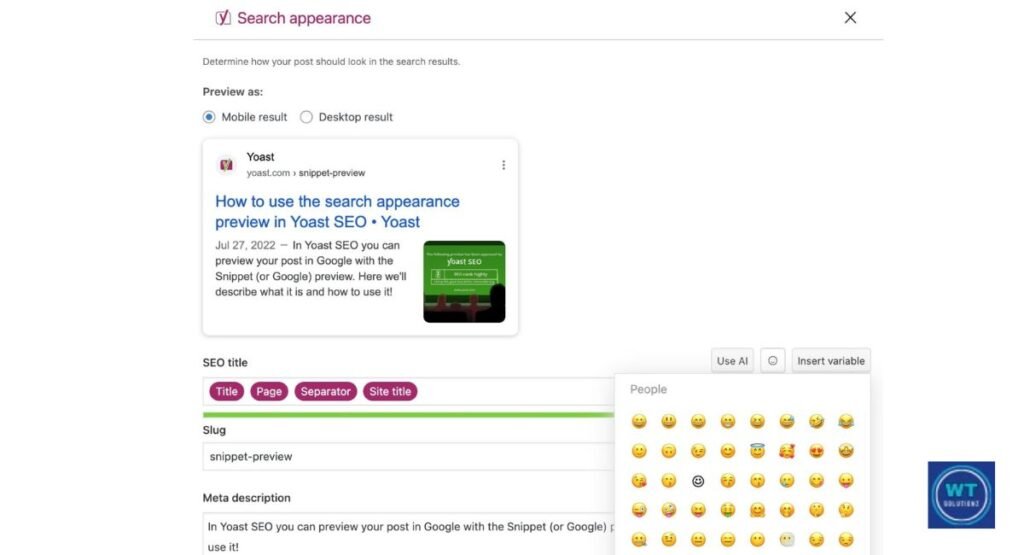
The fix is simple. Use Dynamic Placeholders or Snippet Variables built into your SEO plugin. In Yoast SEO, go to SEO > Search Appearance > Archives. Add %%page%% to the end of your description template.
In Rank Math, go to Rank Math > Titles & Meta and use %page% in the same field. Now every paginated page gets a unique description automatically. No manual work needed.
- Yoast Example: “Browse our latest marketing articles – Page %%page%%.”
- Rank Math Example: “Read our SEO tutorials and guides – Page %page%%.”
Solution 3: Deactivate the Redundant SEO Plugin
This one is blunt. But it works. One site needs one SEO plugin. That’s it.
Click Plugins > Installed Plugins in your WordPress Dashboard. Deactivate Yoast SEO immediately if you notice Rank Math and Yoast SEO functioning together. To avoid losing your current descriptions, export your SEO data before deactivating. With just one click, Rank Math’s integrated migration tool can import all of your Yoast data.Rankmath.com/kb/migrate-from-yoast-seo is where you may find it. Just one plugin. tidy results. No more disputes.
Solution 4: Use Canonical URLs to Signal the Master Page
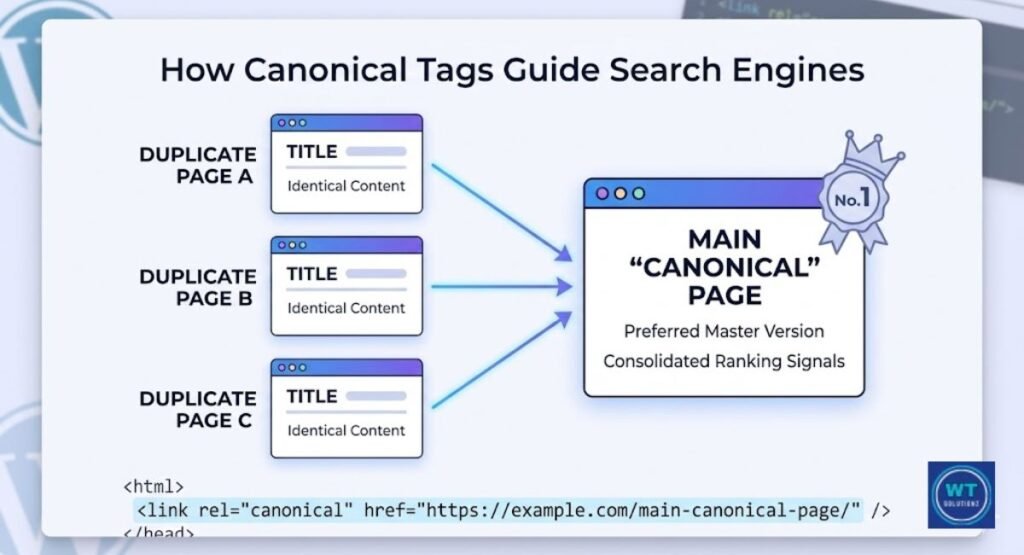
Sometimes the duplicate cannot be removed. Perhaps the content on the two pages should be comparable. In that scenario, you identify the “real” version to Google using a Canonical URL.
The header code of your page contains a canonical tag. It directs Google to the desired URL. Go to the Advanced tab within the Yoast panel after editing the page in Yoast SEO. There, type the canonical URL. Navigate to Advanced > Canonical URL in the post editor of Rank Math. After that, Google will mostly disregard the duplicate and give the canonical page credit for all ranking signals. The duplicate page is not removed by doing this. However, it counteracts the harm it does to your Google Indexing performance.
html
<!– Canonical tag example placed inside <head> –>
<link rel=”canonical” href=”https://yoursite.com/your-main-page/” />
Solution 5: PHP Code Snippet for Advanced Users
Some themes write meta descriptions directly into their Header.php file using Hardcoded Tags. You can’t fix those through a plugin. You need to remove them with code.
Add this snippet to your child theme’s Functions.php file. Always back up your site first. Never edit Functions.php on a live site without a backup.
php
// Remove hardcoded meta description from theme
function remove_theme_meta_description() {
remove_action( ‘wp_head’, ‘your_theme_meta_function_name’ );
}
add_action( ‘init’, ‘remove_theme_meta_description’ );
Replace your_theme_meta_function_name with the actual function name your theme uses. Press Ctrl + U on any page to locate it. Look up “description” in the surrounding code and follow the function name. After you remove it neatly, your SEO plugin assumes complete control.
Best Practices to Prevent Future SEO Issues
It’s fantastic to fix duplicates today. But it’s preferable to keep them away. Long-term site protection is possible with a few wise practices.
Write a different excerpt for every page and publish. There aren’t any exceptions. Each description must stay within the character restriction of 155–160. If it’s longer, Google stops it. If it’s shorter, great real estate is wasted. Use the character counter that your SEO plugin provides to always stay within the limit. Think of your meta description as a little commercial. Make a difference.
Use the Noindex Directive on low-value pages. Author pages, archive pages, and thin Taxonomy pages should be marked as Noindex in your SEO plugin. This tells Google not to index those pages in any manner. It also protects your Crawl Budget, which is the number of pages on your website that Google is prepared to crawl every day. Wasting it on thin pages will result in fewer crawls of your important pages. Create a monthly audit using Screaming Frog or SEMrush. Put it into action. Modify what you find. Maintain rigorous Meta Tag Optimization all year long.
Expert Insight: Moz claims that even in the absence of a ranking change, distinctive and captivating meta descriptions can increase CTR by as much as 5.8%. In plain sight, that is free traffic.
See Also:
What is the Length of Meta Description
How to Improve Meta Description Organic CTR
FAQs
Can two pages have the same meta description?
In theory, WordPress won’t prevent you. However, you should not permit it at all. Google may change both descriptions or ignore them completely if two pages include the same SERP Snippets. Nothing pops out in the search results, which lowers your Click-Through Rate (CTR). Make sure every URL has a unique description.
Why is duplicate content an issue for SEO?
Your ranking signals are divided by duplicate content. Google is unsure about which version of a page should be given priority. Thus, it occasionally ranks neither. It confuses Google Indexing and weakens your authority. As a result, pages that were deserving of high rankings receive lower rankings overall.
How do I fix duplicate content in SEO?
To direct Google to the master version, use canonical URLs. For thin or low-value pages apply the Noindex Directive. For each post, write a different description. And address the underlying cause, whether it’s a theme problem, a plugin conflict, or manual copy-paste issues from your editing staff.
How do I fix meta descriptions in WordPress?
Install just one SEO plugin. Turn off the Theme SEO Settings for your theme. Use the Bulk Editor in Yoast or Rank Math to change numerous pages at once, or write unique descriptions for each page within the WordPress Dashboard. For archives, use snippet variables such as %%page%%.
Does having duplicate meta descriptions result in a Google penalty?
Not an official manual penalty. However, pages that Google’s algorithm deems unclear or of poor quality are subtly suppressed. Over time, duplicate descriptions reduce your search engine visibility. It’s a gentle punishment that gradually reduces your organic traffic. Before it becomes worse, fix it.
Can I leave meta descriptions blank?
You are able to. However, you really shouldn’t. Google automatically creates descriptions based on the content of your page when you leave them blank. It frequently selects arbitrary text that doesn’t effectively market your page. Search results provide you no control over your User Experience (UX). You should always write your own. Don’t exceed the 155–160 character limit for the Meta Description Length.
How long does it take for Google to update after a fix?
Usually, two to four weeks. Your changed pages must be recrawled and reindexed by Google. By using the URL Inspection Tool in Google Search Console to request reindexing on your most crucial pages, you can expedite this process. Additionally, submit your sitemap one more. This encourages Google to crawl more quickly.
Final Thoughts
The last line is this one. Duplicate meta descriptions are a silent SEO killer. They damage your Click-Through Rate (CTR), drain your crawl budget, confuse Google, and subtly degrade your rankings. They are completely repairable, though.
To begin, use Google Search Console or Screaming Frog to identify the problem. Next, take these five actions: Disable theme SEO options; correct paginated archives with Dynamic Placeholders; eliminate superfluous plugins; establish canonical URLs; and, if needed, remove Hardcoded Tags from Functions.PHP. After that, develop a habit. Write a different excerpt each time. Don’t exceed 155 or 160 characters. Every month, conduct audits. Use the Noindex Directive for thin pages.
For your WordPress website, headers must be clear and optimized. You should also provide your readers with descriptions that entice them to click. If you correct this now, you’ll see a shift in your ranks within a few weeks. All you need is right here. Please remove those unnecessary meta descriptions forever.